I’ve moved my domain over to my Synology 923+ leveraging Cloudflare. It’s been working seamlessly for a couple months now. This week to took the time to install Wordpress in order to leverage my Wordpress module. The install went smoothly and my first test post appears.
What I can’t figure out is why my logo is not showing up in the masthead like it does for all the non-blog pages. Checking the Web Inspector reviews this error:
[Error] Failed to load resource: Data URL decoding failed (data:;base64,iVB…GO=, line 0)
If I view the page via http, I see the logo. If I view it via https there is no logo. It’s clickable back to my site regardless, but the logo is missing via https
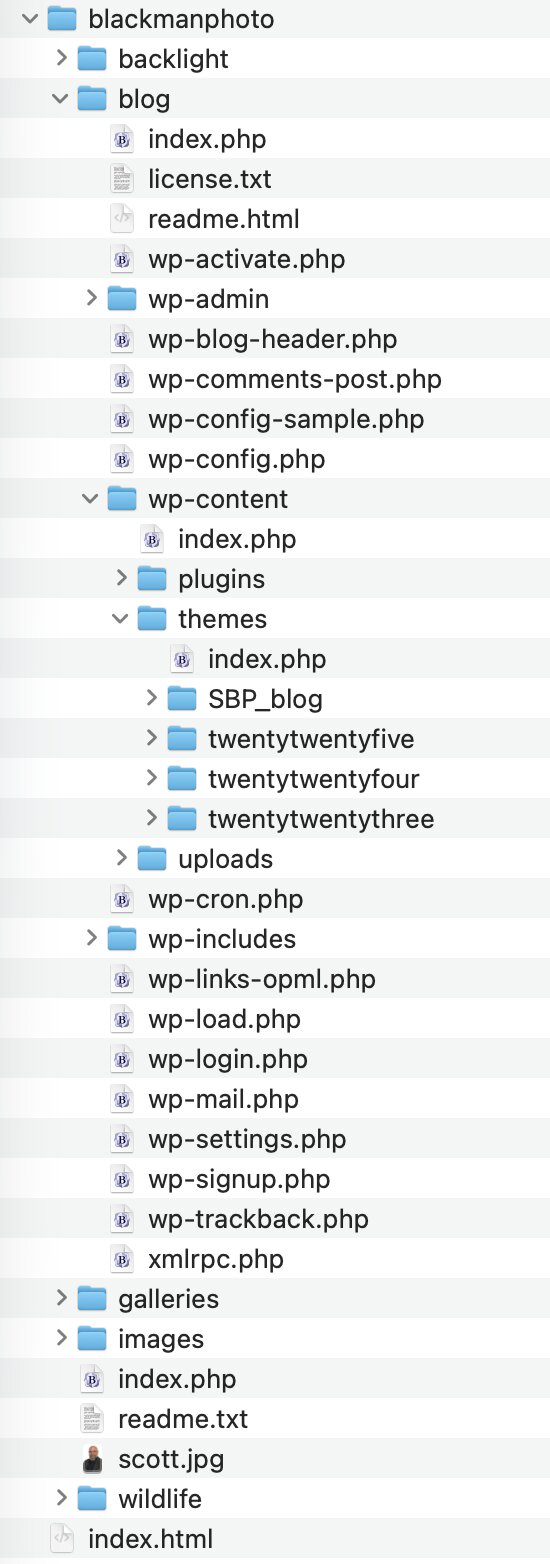
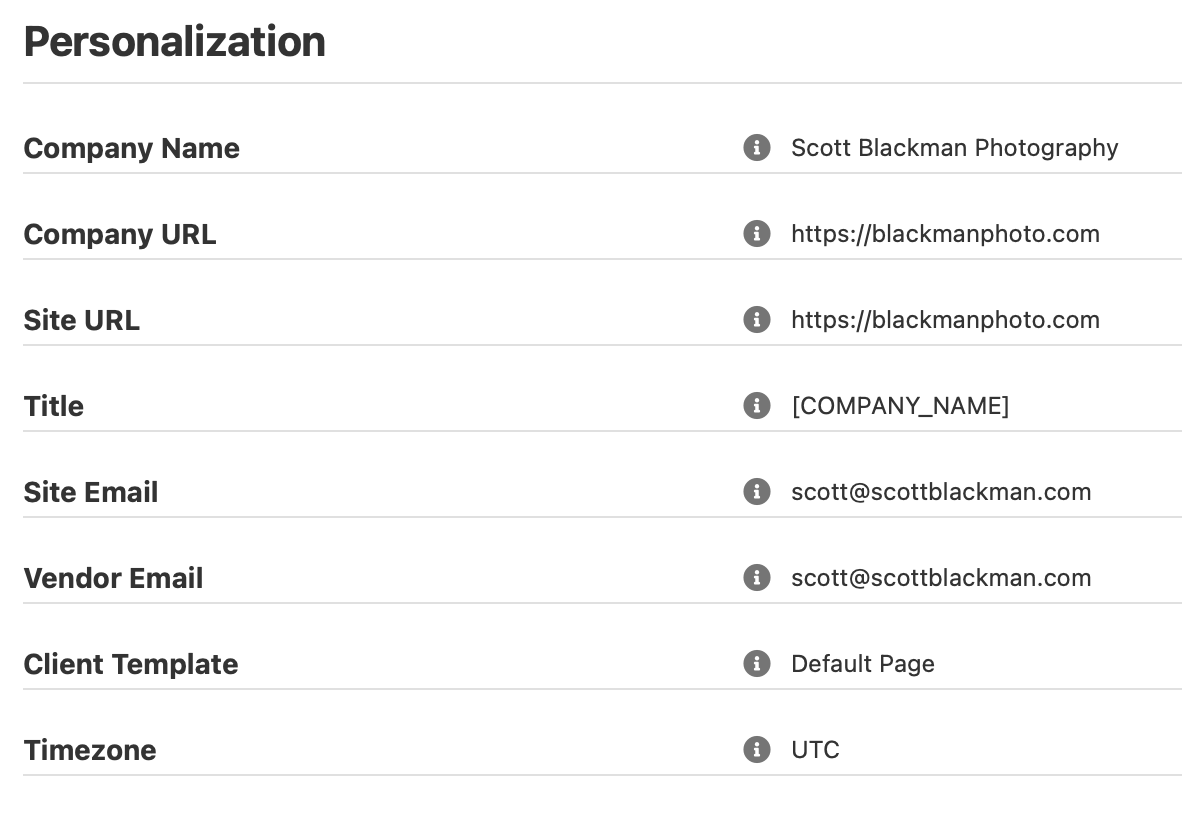
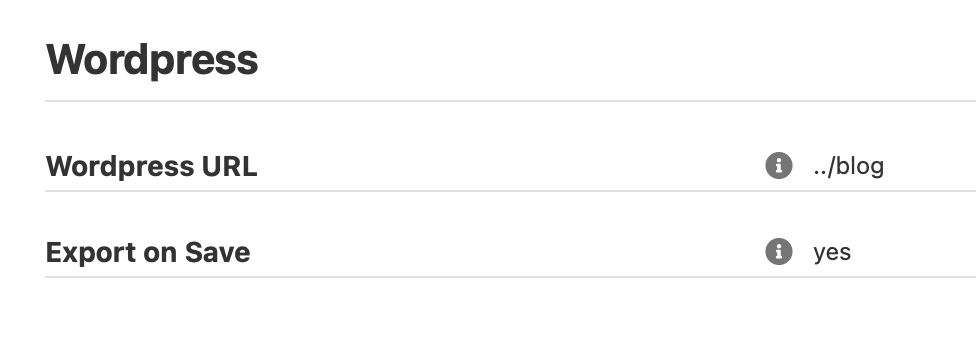
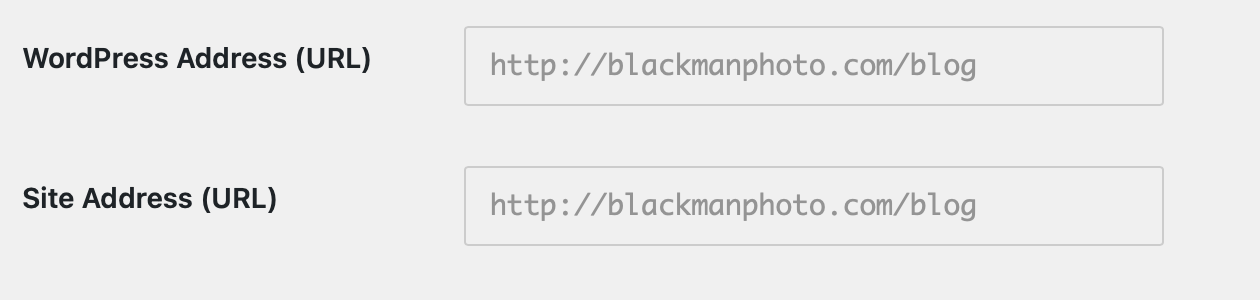
Tried searching the community for solutions but either didn’t find it or I’m searching on the wrong teams. I’ve added the view of my configuration to confirm that I have WP installed based on the installation guidance.
Any troubleshooting suggestions would be appreciated. Can’t tell if this is a Backlight issue, Wordpress, Synology Web Station or Cloudflare.
The reason the Wordpress URL is set at ../blog is that through troubleshooting with ChatGPT (which can clearly be questionable sometimes) it had suggested changed it from full url to ../blog as a way of testing. It seemed to still work, but the image still wasn’t showing. So I may need to go back and adjust that. Simply figured it would be more prudent to validate here before I continue monkeying around with changes.
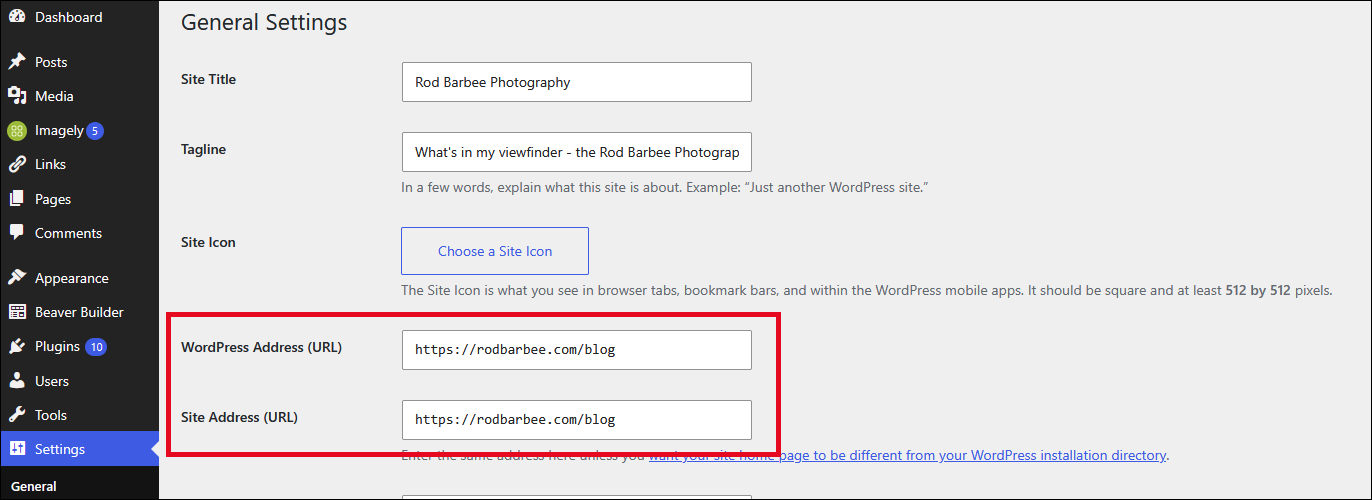
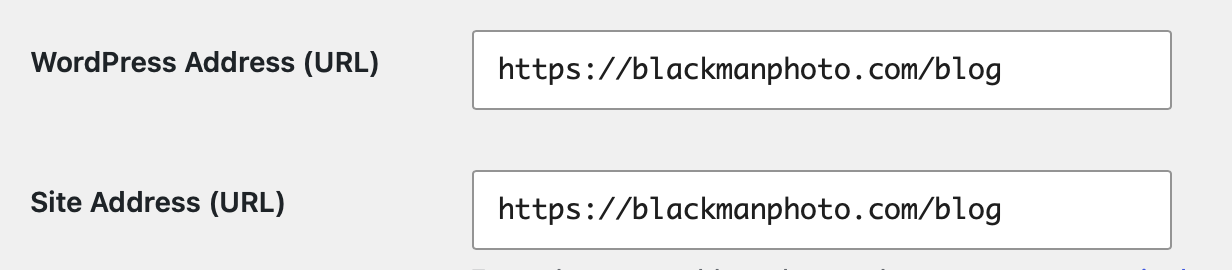
You’ll noticed these are greyed out. I had gone in and changed these to https and immediately lost the ability to log into my WP Admin. Discovered I could add this to the wp-config file to enable me to get back in:
That’s the point I decided it was time to stop messing around and see if I could real answers here. I feel like this could be something to do with my Cloudflare tunnel configuration, but not 100% sure. So feel free to push me in another direction if this is not really a solution that best comes out of the TTG community.
I suspect that because your blog is being accessed by http while the rest of your site uses https, that has something to do with the missing logo on your blog.
@Matthew or @Daniel may have some solutions. You could also try installing the Real Simple SSL plugin.
WordPress is now configured with both home and siteurl set to HTTPS, and WordPress correctly works through the Cloudflare Tunnel. However, the Backlight WordPress theme still generates the identity plate as src="https://blackmanphoto.com/backlight/designer/page/image/2" but srcset="``http://blackmanphoto.com/backlight/designer/page/image/2``". The standard Backlight page generates both URLs as relative /backlight/... URLs.
I went into the site’s template and reexported to Wordpress. No change. Went back and renamed the them to include “update” in the name, reexported to Wordpress again. Not change. Cleared Safari cache. Cleared Backlight template cache via special links. Still no joy.
Still receiving this error in web inspector:
[blocked] The page at https://blackmanphoto.com/blog/ requested insecure content from http://blackmanphoto.com/backlight/designer/page/image/2. This content was blocked and must be served over HTTPS.
My site and blog are set up like yours. I’m seeing the same references as you do in both the main site and the blog. The only difference is that my masthead image is appearing in both.
Maybe try re-uploading the masthead image as a new image. Then, in your page template(s), replace the original with the newly uploaded version.
That’s strange. Looking at my source code, I see that the paths to the images are all relative and not absolute like yours. I’d try Rods suggestion with uploading a new image.
Otherwise as a workaround, you could edit the exported Wordpress template by hand and fix the http link. You could use a child theme to avoid that your theme is accidentally overwritten, but that’s a bit more complicated.
I have created a new version of my logo and ensured it had a unique name. I’ve uploaded that image to backlight via Designer > Templates > Uploaded images. I’ve gone to my Default Page template and - in the Masthead section - I’ve selected that new image and saved. I’ve gone back to the Theme Templates and re-exported the template to Wordpress. I’ve taken the extra step and gone to special links and cleared template cache. I’ve cleared the cache in Safari on my Mac and also view the blog page on my iPad. Unfortunately, I’m still getting the error when viewing Web Inspector and the log is not showing in Scott Blackman Photography Blog
I’m quite perplexed. Still confused by why the image is being served as http and not https. It’s unclear to me where the http image delivery is coming from. Seems like somewhere in this chain I’m still needing to tell some area that it should be delivering everything via https.
Daniel, thanks for your suggestion. I’ve clearly tried Rod’s suggestion and unfortunately, the exported WordPress page still generates the masthead image as:
Can you point me to where, in the exported WordPress theme, that http:// URL is being generated? I’d like to inspect the relevant template/PHP file rather than make further changes to the NAS/WordPress configuration. If you can tell me the filename and approximate location, I can inspect it.
Also, is the fact that src is correctly generated as HTTPS while srcset is generated as HTTP significant? It seems to suggest that the WordPress export is constructing those two attributes differently.
It looks like there are two files to edit. Go to the theme directory (blog/wp-content/themes/your-theme/ and then edit masthead-primary.php and masthead-secondary.php. Change all http:// to https://.
You should be able to edit these files in the Wordpress theme editor as well.
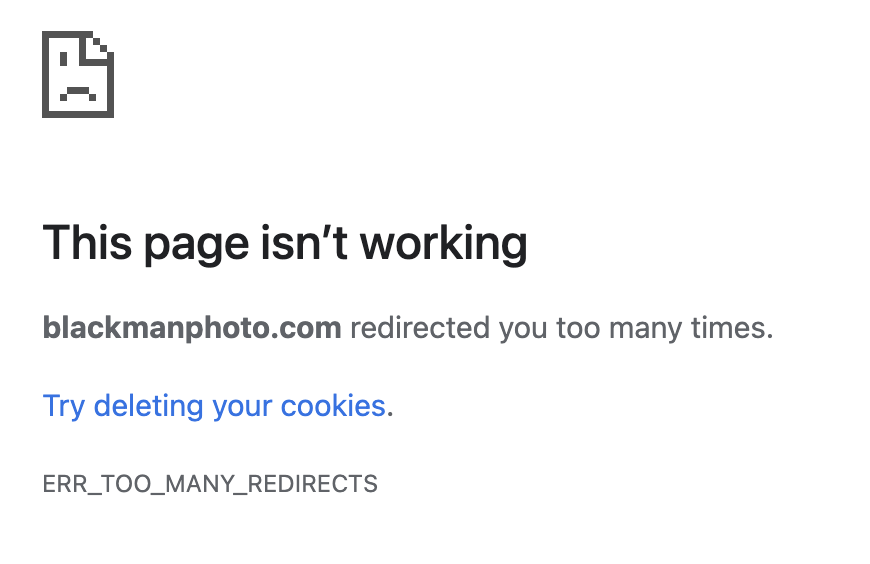
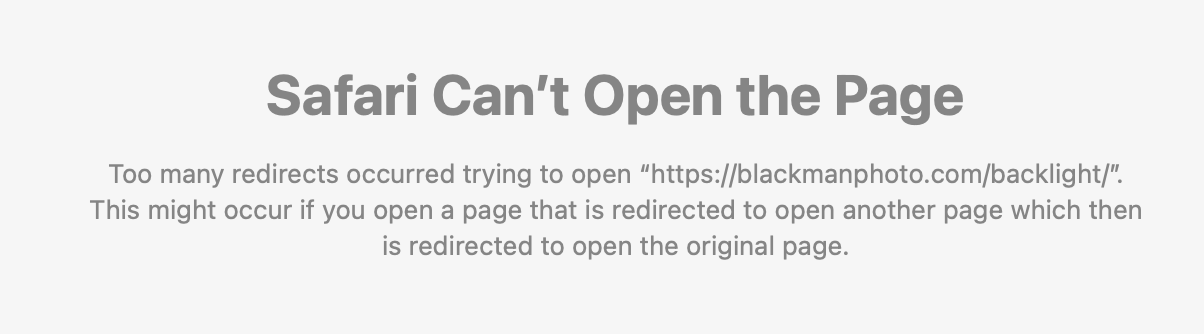
Before I go to what Daniel just sent, I did what you recommended Rod. In Settings > Privacy > Automatically Redirect Browsers to https, mine was set to no. I changed to yes. I resaved the default Page template (which is used for Wordpress). I republished the themes template. Going to my blog page still didn’t show the image, but is also now redirects to a message indicating that the cart us unavailable - which I’ve never seen before.
In addition, I’ve now seem to have lost the ability to log into the Backlight Admin interface. Neither Chrome or Safari will take me to the admin login page. Also, my entire blackmanphoto.com site is inaccessible.
Genius, Daniel - that did it. I only had a url to the image in the primary. There is no secondary url to change. But adding the s to secret solve the issue with the image in the masthead.
Thank you!
So…from a sustainability perspective, is this likely something that would need to be done anytime I might need to make a change to the themes Template? Or is there something I should be continuing to troubleshoot that might make this something that doesn’t need to be manually edited?
Otherwise, to avoid having to edit files every time you update your template, you could create a child theme like @Daniel alluded to earlier and place changes in the functions.php file.
Or leave everything as it is for now and wait and see if @Matthew has any suggestions.